Round or Oval Photo Mats the easy way

This is an amazing technique I came across for creating round or oval mats for photos instead of creating a separate element. I wish I had known about this when I first went digital; it would have saved a lot of time.

1. select photo

2. format photos

3. “select frame”

4. double click on “double mat”

5. under the “format photos” tab select “customize”

6. select the smaller mat (first on the top row of the pop-up window), “cutout”, double click on “ellipse” (circle), “mat fill” make your selection (anything but transparent)

7. select the larger mat (second on the top row, green by default on 4.0), “cutout”, double click on “ellipse” (circle), “mat fill”, “make transparent”, “okay”

For a double mat, select the triple mat and make sure the largest mat is transparent.
Creative Memories’ Website Resources

If you go to the Creative Memories website (click here) and scroll down to the bottom, you will see six icons in the right hand corner. The first one is a link to several blogs. You can sign up for email updates from the blogs that interest you. The second one is for consultants only but I’m sure you’ll recognize the last four icons.  You can subscribe to the YouTube channel to receive an email each time a new video is uploaded. Click on the Pinterest icon only if you have some time to browse:).

Click here for a free trial download of StoryBook Creator 4.0.


Inspiration from the Internet


These are some of the websites that I go to for inspiration. Left click to bring up a high quality image then right click to save it in an idea file. Bring the photo into CM, make it 12 x 12 and layer your elements on it using it as a guide.


I love how I can create almost anything with CM. It’s very easy to scrap lift!

Too Many Pages?

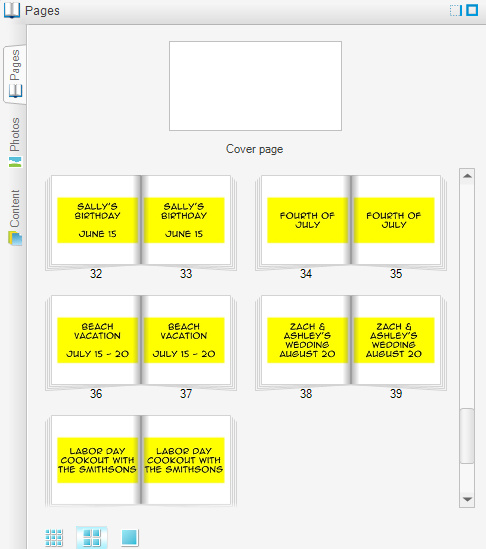
A Creative Memories StoryBook has a maximum of 100 pages (50 sheets of paper). If you’re like me and you make a book for each year and you are in the habit of making a two-page spread for every event and there is a chance that this might not be enough or it might take some careful planning to fit everything in, label your pages with your plans ahead of time. This way, if life doesn’t go according to plan (ha ha) then you can tweak your scrapbooking plan. For example, you might decide to use only page for the neighbor’s cousin’s wedding and only one page for the Labor Day party. Alternately, if your plan takes up only 80 pages, then you know that you are free to use four pages for the beach vacation!

Yup, it’s true. I’ve started a blog.

So a few months ago, Jennifer B. suggested I start a blog instead of sending emails to my digital scrapbooking customers. The day has come!

My first post is as simple as it comes… making an element look glittery using Creative Memories StoryBook 4.0.

* Select element. * Flatten if necessary (Arrange tab). * Select Surfaces under Format tab. * Select Block. * Move Contrast all the way to the right. OK