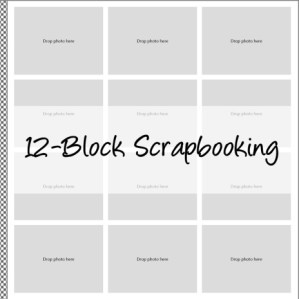
I decided to simplify my scrapbooking this year and make all my pages based on a 12-element grid. The instructions will explain how to make two different grids – one with portrait photos (vertical) and one with landscape photos (horizontal). Once you create the 12 elements on your page (choose whichever one will suit your needs better), you can stretch out the elements to also suit your needs.
- Insert a rectangle shape. Landscape size: 10.5 wide x 10.7 high. Portrait size: 10.3 wide and 10.9 high.
- Cut, Grid, Spacing = 3. Landscape: 3 across, 4 down. Portrait: 4 across, 3 down
- Select your binding under View.
- Group the 12 elements together and center the grouping on the page. Ungroup.
- To change a shape into a photo: Right click on each element, Fill, Convert to photo drop unless you want to decorate the element and/or add a text box for journaling or a title.
- Resize the photo drops as needed. As you stretch the elements (grab and drag the little boxes around the perimeter), green lines will appear (if you have the Artisan 5.0) and you will easily see when one photo has taken up the spaces for 4 photos or however many you want to stretch it to. Delete the photos that have been covered and are no longer needed.
- Add a background, decorate, journal as usual.
- Once the two pages have been created with 12 blocks each, copy them and edit as needed.


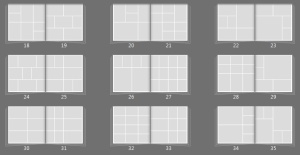
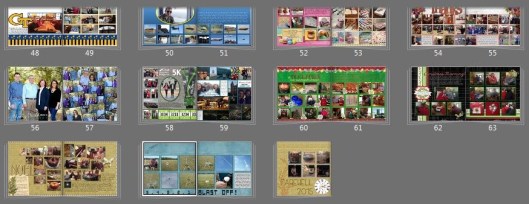
The configurations are many! Here are a few that I plan to use:
I’ve added rounded corners, a 3-D edge and a light shadow to look more like chipboard but that’s all optional. (It was somewhat distressing to discover that rounding the corners isn’t as easy as choosing the same amount for each element – the amount of rounding is relative to the overall size of the element.)
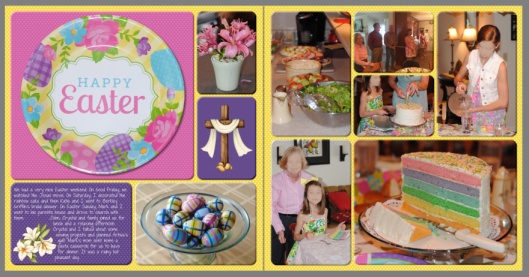
Yes, I took a picture of the plate but I knew that was an easy title!
Please let me know if you try this method and how it works for you. Of course, I will want to know if something is unclear or incorrect.
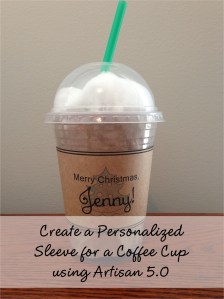 I got the idea from Pinterest (of course) to give a Starbucks gift card in a Starbucks cup so that’s exactly what I’m going to give my hairstylist for Christmas. Making a sleeve using Artisan and printing it on brown cardstock adds the finishing touch. I lined the cup with wrinkled brown paper to look like coffee and added cotton balls to look like whipped cream. If you mention to the Starbucks employee, when purchasing a gift card, that you would like a cup and straw for packaging, they are not likely to say no!
 Download this template and make the finished size 10.75″ x 3″ (Right Click, Properties). Add your decoration in the middle, group the elements together (Arrange tab), and, if necessary, Rotate 90 Degrees Clockwise (Arrange tab) so it will fit on standard printer paper. To center it on the page: Home, Align, Center on Page. Then Save, Print (File tab), Print, Current Page, Print. The Christmas tree is from the Digital Variety Kit (I reduced the opacity) and the font for Jenny is Xiomara.




















 enjolivure